


Land Rover InControl® Apps™

If you are looking for a seamless way to integrate your smartphone with your vehicle infotainment system on Naperville and Bolingbrook drives, the Land Rover InControl® Apps™ in new Land Rover model is the way to go. This system is compatible with most Android™ and Apple iOS® smartphones, and this app enables you to access your favorite apps on the Land Rover InControl touchscreen. Check out our guide to Land Rover InControl® Apps™ at Land Rover of Naperville!
How Do I Set Up Land Rover InControl® Apps™?
Installing Land Rover InControl® Apps™ can be achieved in four easy steps:
- Search for Land Rover InControl® Apps™ in the Apple App Store or Google Play depending on the smartphone you have.
- Select the app, then download, accept, and install it.
- Make sure the installation was completed by finding the Land Rover InControl® Apps™ icon on your smartphone screen.
- Follow the Auto Quick Start Guide to complete setting it up.
Once you’ve installed Land Rover InControl® Apps™, follow these steps to connect it from your to the in-vehicle touchscreen:
- While in your vehicle, pair your smartphone to your vehicle’s Bluetooth to enable phone calls and audio streaming.
- With the USB cord that came with your smartphone (not a charging-only cord), plug your phone into the InControl® Apps™ USB port (not a charging-only port).
- If you have an iPhone and InControl Apps is not currently open, open the app now.
- If you have an Android, select ‘Always Allow’.
- Leaving your phone unlocked, select InControl Apps on your Land Rover touchscreen.
- Select View to use apps without audio and select View and Listen to use apps with audio.
If you want to connect third-party smartphone apps to your in-vehicle touchscreen via Land Rover InControl® Apps™, follow these remaining steps.
- On your vehicle touchscreen, third-party apps will be grayed out with a key symbol until the setup process is complete.
- Select one of the grayed out apps on your vehicle’s touchscreen, read the instructions and press Start.
- On your mobile device, approve the pop-up that appears.
- On your vehicle touchscreen, press the home button.
- On your mobile device, approve the second pop-up that appears.
- Repeat for all third-party apps to unlock them on your Land Rover touchscreen.
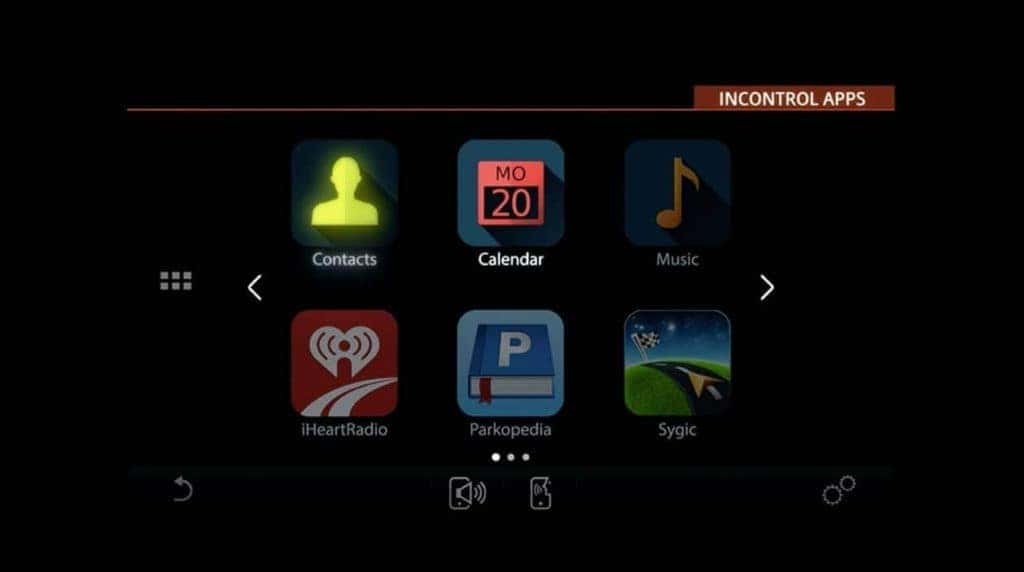
What Apps Can I Use with Land Rover InControl® Apps™?
There is a wide range of apps that are already compatible with the Land Rover InControl® system, which means you can stay connected and informed on your commute or Chicagoland adventures:
- News & Entertainment: Newsbeat, Rivet Radio, Rdio, Audiobooks, and Stitcher
- Points of Interest: Cityseeker, Eventseeker, and Hotelseeker, and Parkopedia
- Conference Calls and Online Meetings: MobileDay®
- Navigation and GPS Tracking: Sygic and Glympse
- Journey and Fuel Monitoring: Mileage Tracker Pro
What is the Land Rover InControl® Remote™ App?
While Land Rover InControl® Apps™ allow you to access smartphone apps right from your Land Rover, the Land Rover InControl® Remote™ app allows you to control and monitor your Land Rover on your smartphone or Apple Watch® when you aren’t in the car. Some of these functions include:
- Remote start
- Lock/unlock Climate control
- Vehicle tracker
- Maintenance alerts
- Fuel level monitoring
Control the Roads with Land Rover of Naperville
Explore more Land Rover technologies in the flagship new Range Rover interior, or schedule a test drive near Downers Grove and Schaumburg to experience a vehicle in the Range Rover family or Discovery family in person!